


User Manual
Audio Track Chooser

The audio track picker displays all tracks that match the current chord chart by name. In addition, this menu will display a custom track that you've picked. For each track, the album artwork is displayed (if available) as well as the track name and artist.
Audio Playback Settings
Tapping on the wrench icon will open a screen allowing you to change audio playback settings. Tap Done to save changes and close the screen, or tap on Cancel to close the screen without saving changes.
Linking To Matching Audio Tracks
Tap on the audio track you want to associate with the chord chart. By default, OnSong will link the first found track when matched by name. A checkmark will appear next to the track to indicate the currently linked track. If you would like to unlink the track from the chord chart, tap on the checked track to uncheck it. This will result in no audio track being associated with the chord chart.
Linking To Custom Audio Tracks
To choose a track from your iTunes Music Library or OnSong Media Library, tap on the + button in the lower right corner to open the Choose Custom Track menu that allows you to browse for music.
Automatic Matching
By default, tracks are automatically linked by matching on the exact title of the chord chart compared to audio track. You can change how OnSong matches tracks, or disable this feature in Settings » Live Settings » Audio Playback » Automatically Link Tracks.
Matches may include audio tracks found in iCloud. You can remove these as options in Settings » Live Settings » Live Bar » Audio » Show Music in iCloud.
Acquire Duration and Tempo
This switch at the bottom of the screen determines if the duration and tempo are acquired from the selected audio track. If enabled, OnSong will change the duration of the song to match the duration of the selected track. If tempo information is available in the track, it will update the tempo of the song if enabled.
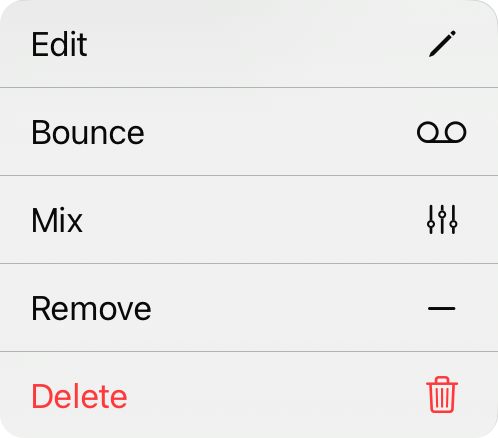
Context Menu
You can access additional actions for each item in a list through a context menu by tapping and holding on the item or via a right-click. Actions include:
- Edit opens the Audio Media Editor where you can make changes to the track.
- Bounce converts the file into a stereo, compressed track with your current mix.
- Mix opens the mixer widget to mix if this is a multitrack.
- Remove the track from the available tracks for this song.
- Delete will permanently delete the track from the library.


