


מדריך המשתמש
גיבוי
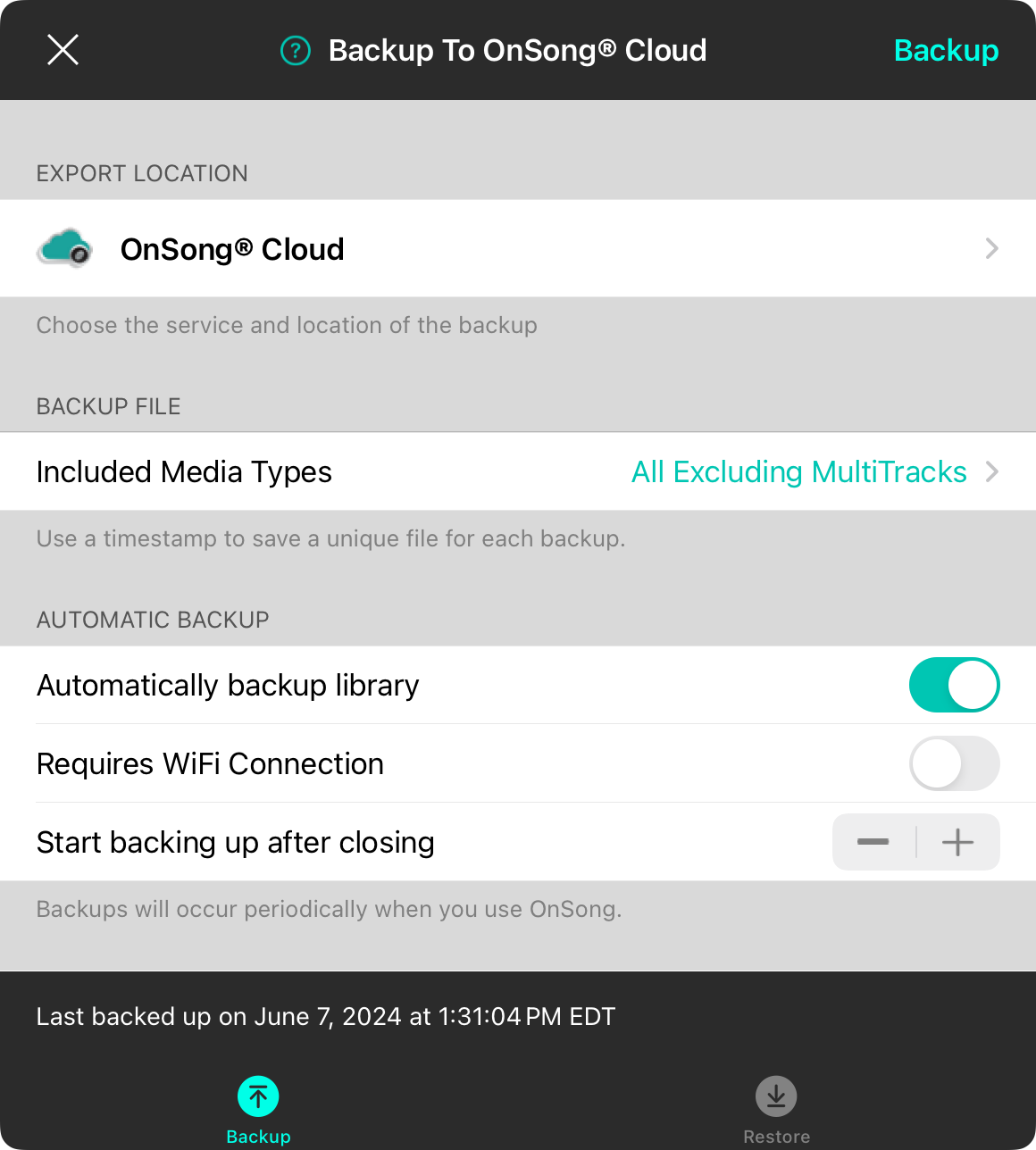
גיבוי הוא חיוני כדי לשמור על ספריית OnSong שלך בטוחה וממוכנת להופעה בכל רגע. מסך זה משמש ליצירת גיבויים ידniים או לתזמון גיבויים להתרחש באופן אוטומטי בלוח זמנים בזמן פעולת האפליקציה. לאחר שקבעת את אסטרטגיית הגיבוי שלך, הקש על סגור כדי לשמור את השינויים שלך, או הקש על גיבוי כדי לשמור את קובץ הגיבוי שלך ידniית.
מיקום ייצוא
סעיף מיקום הייצוא מאפשר לך לבחור לאן OnSong צריכה לשמור את קובץ הגיבוי. הקש על שורה זו כדי לבחור שירות ומיקום לקובץ הגיבוי שלך.
מומלץ להגבות לשירות אחסון מרוחק כדי להבטיח שקובץ הגיבוי מאוחסן במיקום בטוח ומרוחק.
קובץ גיבוי
סעיף קובץ הגיבוי מאפשר לך להגדיר שם קובץ לשימוש בעת שמירת הקובץ. השורה הראשונה מאפשרת לך להזין שם. כברירת מחדל, זה מוגדר ל"OnSong". סיומת הקובץ ".backup" מתווספת באופן אוטומטי לשם הקובץ. שם הקובץ בברירת המחדל הוא "OnSong".
הוסף חותמת זמן לשם הקובץ
כברירת מחדל, OnSong תוסיף חותמת זמן אחרי שם הקובץ אך לפני סיומת הקובץ. חותמת הזמן כוללת שנה, חודש, יום, שעה ודקה כגון 201509091045. הוספת חותמת הזמן תיצור קובץ גיבוי חדש בכל פעם שגיבוי נשמר. השמטת חותמת הזמן תדרוס את קובץ הגיבוי בגרסה העדכנית ביותר.
גיבוי אוטומטי
קובצי גיבוי הם נהדרים, כל עוד אתה זוכר ליצור אותם. OnSong ניתן לקביעה להגבות את הספריה שלך באופן אוטומטי.
הפעל זאת והוא בחר את התזמון בשורה השנייה. באמצעות בקרת הדרג בצד ימין, תוכל לבחור בין הגבה כאשר האפליקציה סגורה או תדירויות הכוללות כל שעה, יומי, שבועי או חודשי.
הערה: אם גם גיבוי אוטומטי וגם הוספת חותמות זמן לשם הקובץ מופעלים, התראה תופיע עם המלצה להשבית חותמות זמן. זאת משום שתצורה זו יכולה ליצור קובצים מרובים התופסים הרבה מקום. אתה יכול להינתן באפשרות להשבית את חותמת הזמן.
סרגל סטטוס
בתחתית המסך יש סרגל סטטוס שיציג מתי נשמר הגיבוי האחרון. אם גיבוי בתהליך, הוא יציג את ההתקדמות הן ליצירת קובץ הגיבוי והן לייצוא שלו ללוקציית השירות.
בזמן שגיבוי מתחיל, כפתור גיבוי בפינה העליונה הימנית הופך לכפתור עצור. הקש על זה יעצור את יצירת קובץ הגיבוי, ייצוא לשירות, וסגור את מסך הגיבוי. OnSong תמשיך לפעול ברקע בזמן שפעולת גיבוי מתבצעת.


